Overview
Bowrain holds the context graph for every project in a workspace: the profiles, the terms, the content memory, and the decisions people make about them, served from one place, the Bowrain server. Everyone reaches the same workspace through two clients, a browser and a native desktop app. They are equal real-time clients, so the hub, the review session, the editor, presence, and history are shared across both. Developers meet the same workspace through server runs: what a run parks arrives in review, and what gets approved here feeds the next run.
This section describes the platform by what you do with it. Client-specific differences are noted inline; the desktop app page covers what is different about the native client.
A quick tour
These short tours run against a live workspace.
The Context hub
The hub opens on the points a workspace's content sits at, one profile card per point: which voice governs it, what vocabulary is in force, what the checks say, what is waiting in review, and who holds the point. Terms are concepts with relations, per-market validity and a story; a change that reaches far travels through a change-set whose blast radius is measured before anyone approves it. See Context.
The narration uses terminology that has since been retired. The interface and the behaviour shown are unchanged.
Review
A run drafts and checks and parks what a machine cannot decide. The review session walks every pending block across items and locales with the source, the draft, the checks and the voice findings side by side; a reviewer approves, rejects, edits, or corrects the context itself. The last approval starts the run that delivers. See Review.
Checks that learn from corrections
Every correction a team makes is a signal. Bowrain aggregates the phrasings people keep fixing into candidate rules, shows the blast radius of each across real content before it lands, and on approval promotes it into a versioned, enforced check. A correction made once becomes a check that stops the mistake from recurring, shared across everyone and every AI tool. See Voice and corrections.
The editor
Open a file and it becomes a side-by-side workbench: source and target, a live preview of the page, and beside each block the matches from the workspace content memory and the terms in force at its point. One editor serves the source and every target locale. See The editor.
The narration uses terminology that has since been retired. The interface and the behaviour shown are unchanged.
Collaboration and streams
A workspace is shared by a team. You invite teammates by email and give each a role, bound to a language or a point where that fits, and streams keep parallel work apart: like branches, a rebrand or a risky pass runs on its own stream, compared and merged back into the main line when it is ready. See Real-time collaboration.
The narration uses terminology that has since been retired. The interface and the behaviour shown are unchanged.
Screenshots
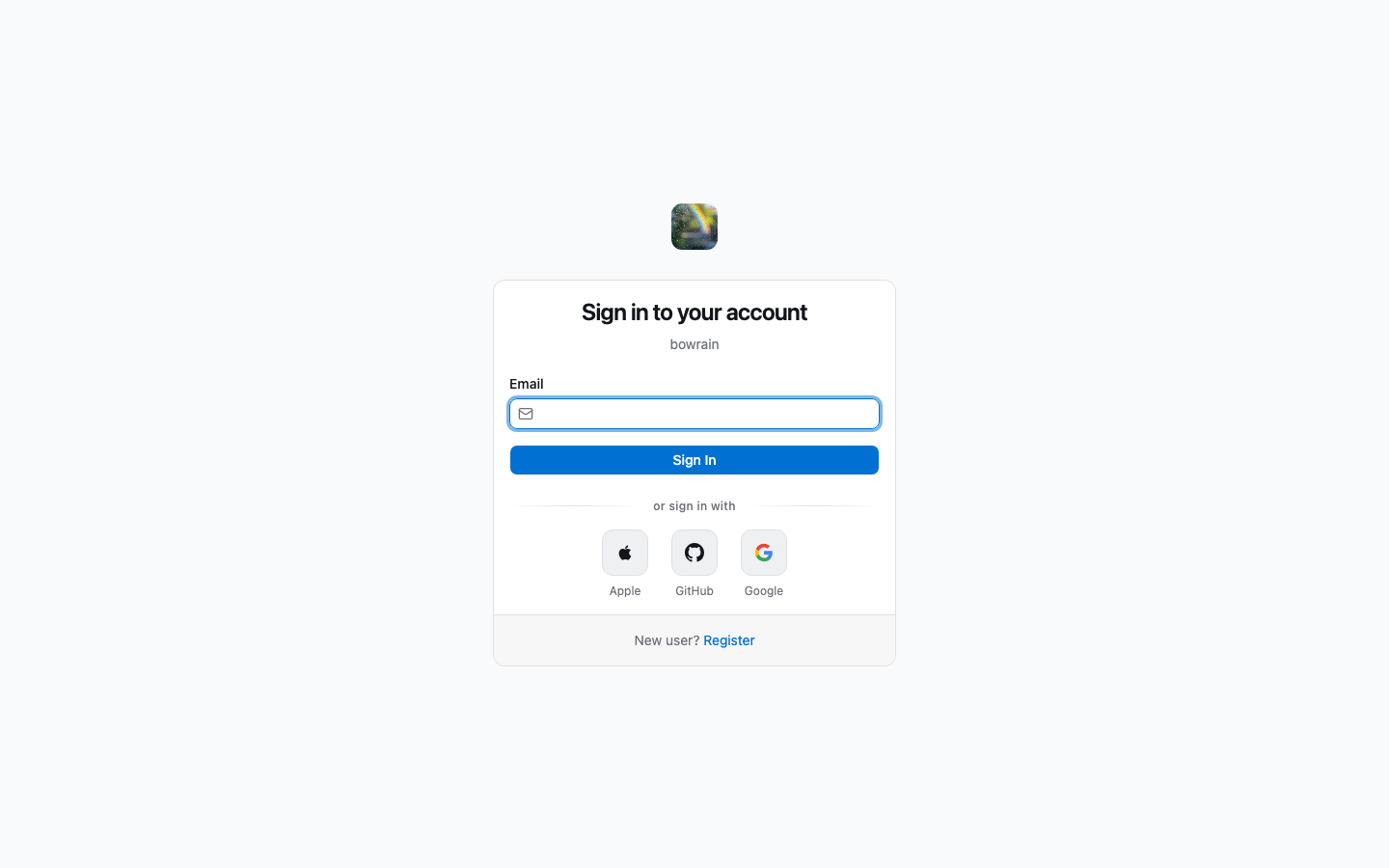
Login
Bowrain authenticates through an identity provider: the hosted service's managed one, or the OIDC provider a self-hosted server is configured with.
Workspace selector
The workspace rail on the left lets you switch between workspaces. Each workspace is an isolated environment with its own projects, profiles, terms, and content memory.
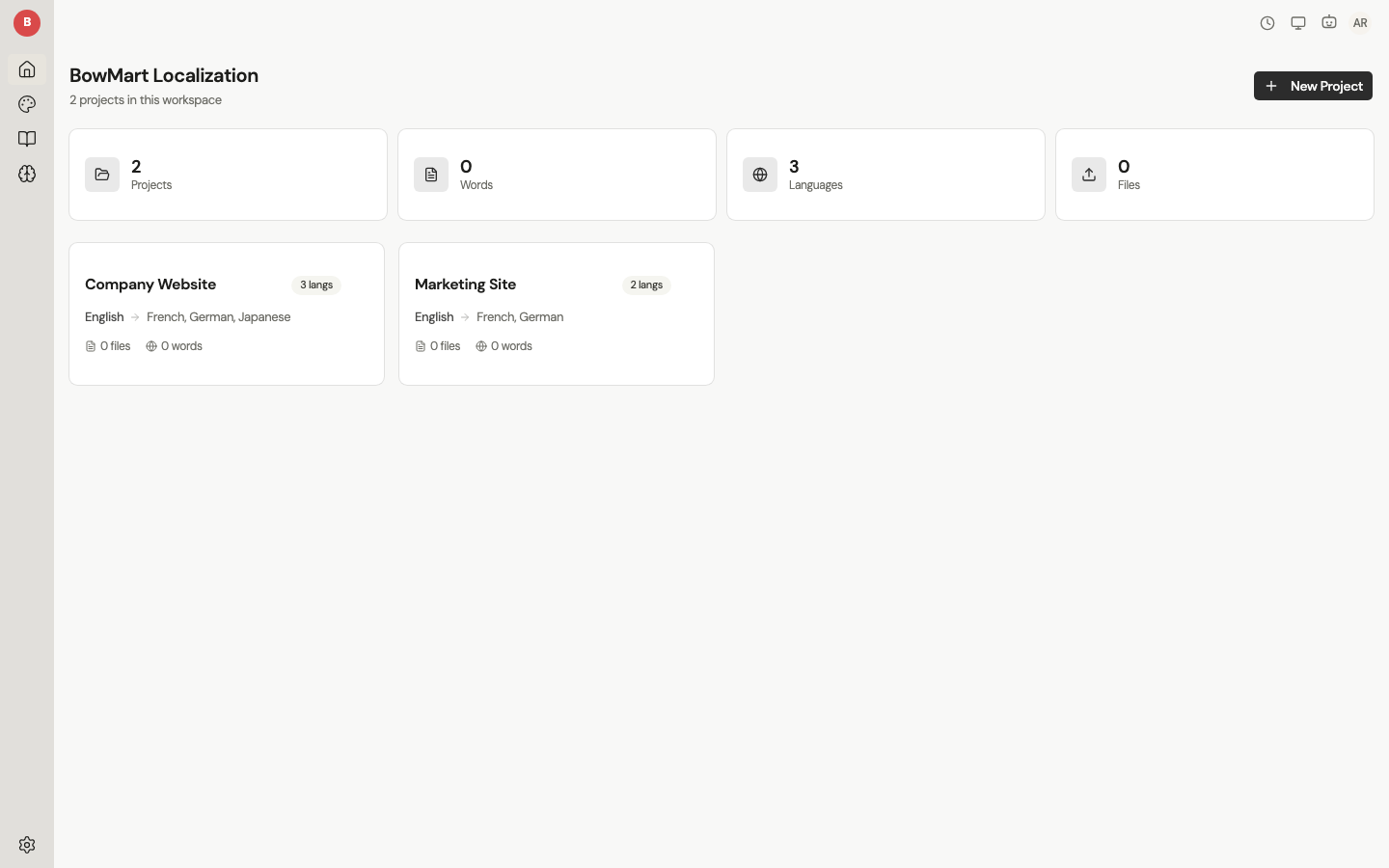
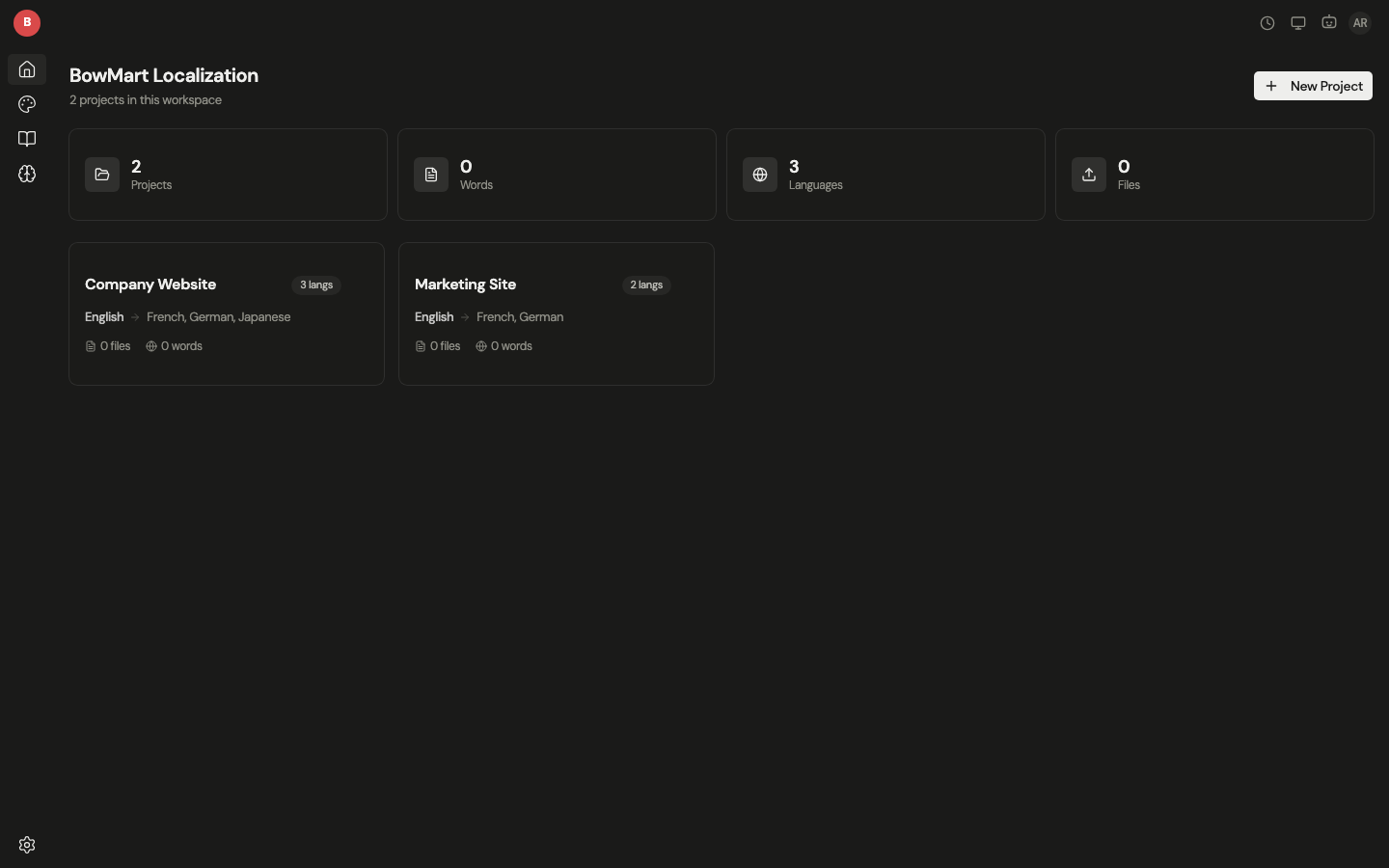
Project dashboard
The dashboard shows all projects in the active workspace. Each card displays the project name, its source language, its target languages if it has any, and file count. Create new projects or open existing ones from here.
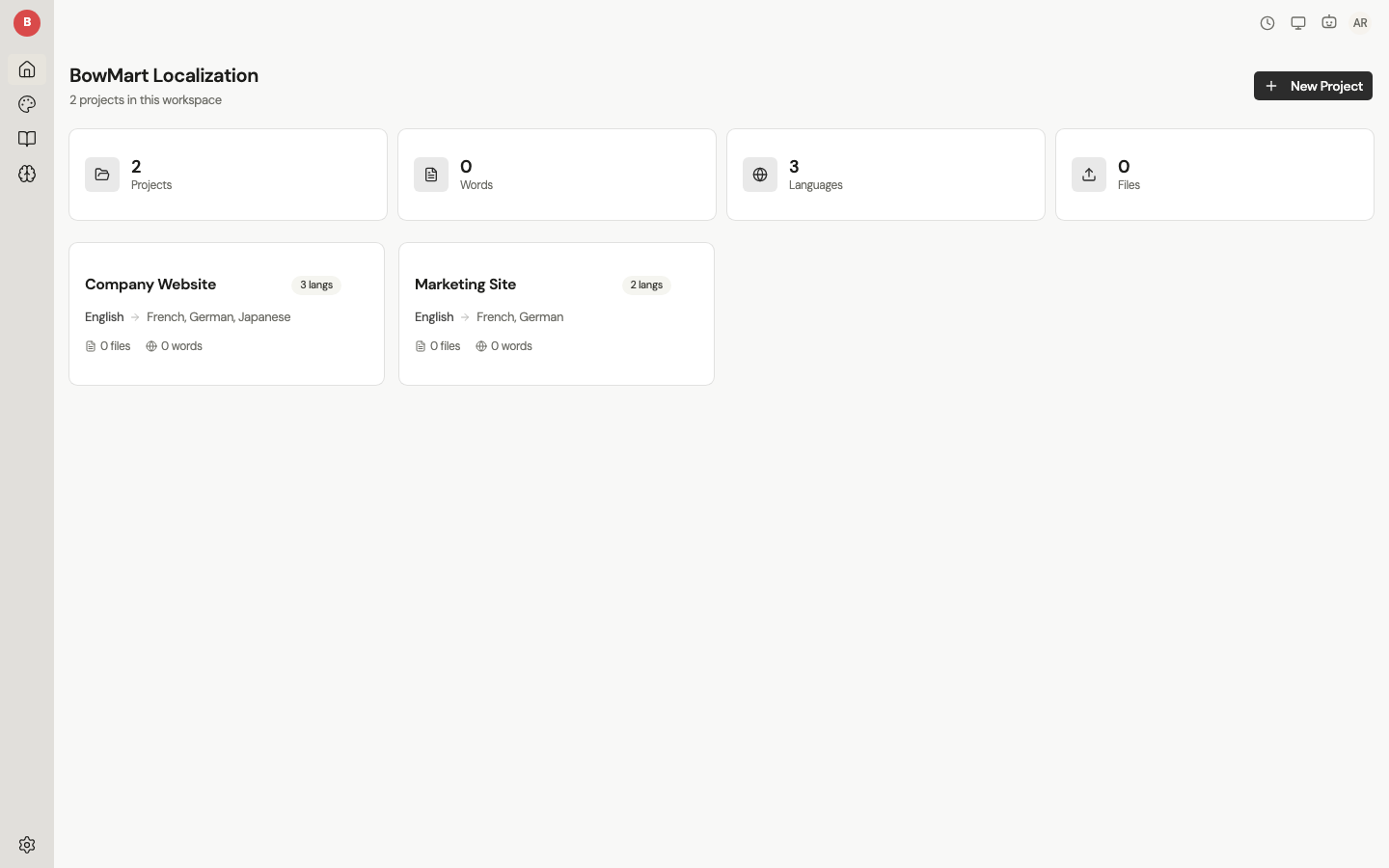
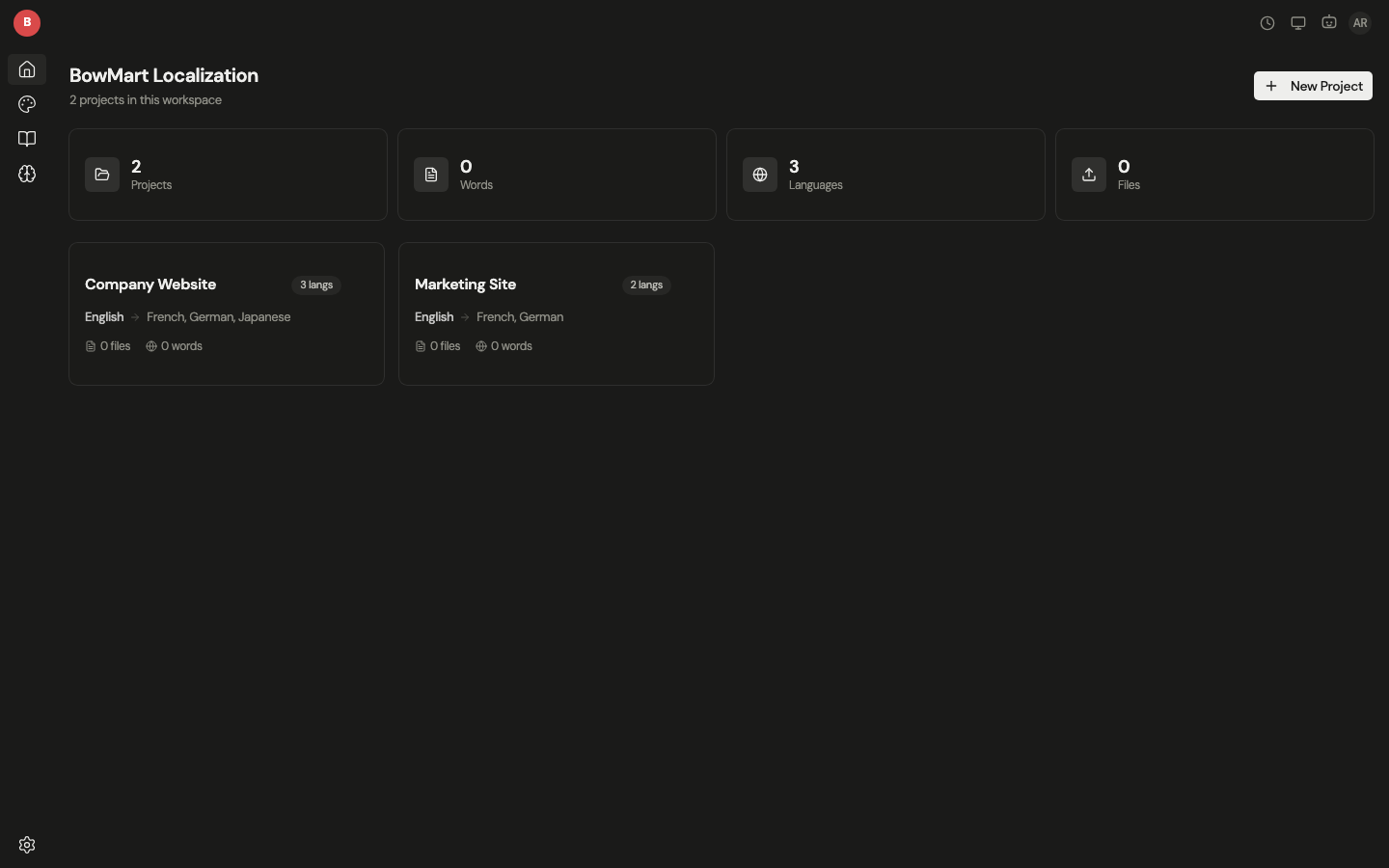
Project view
The project view shows files in the selected project with format detection, word counts, and block counts, and the collections they sit in. Upload new files by dragging them onto the drop zone, or click "Add Files" to browse. The content memory and the terms explorer open from the header buttons.
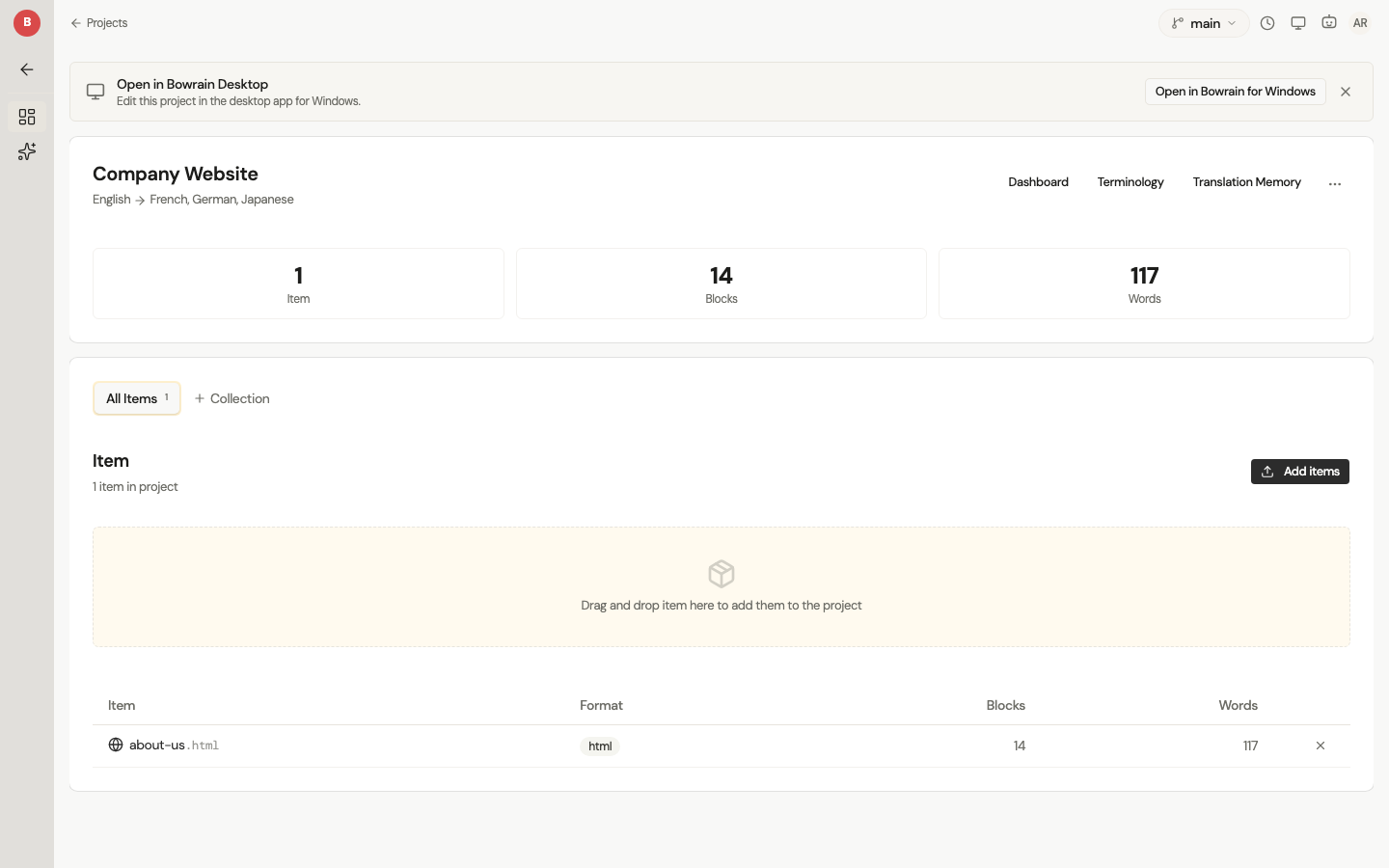
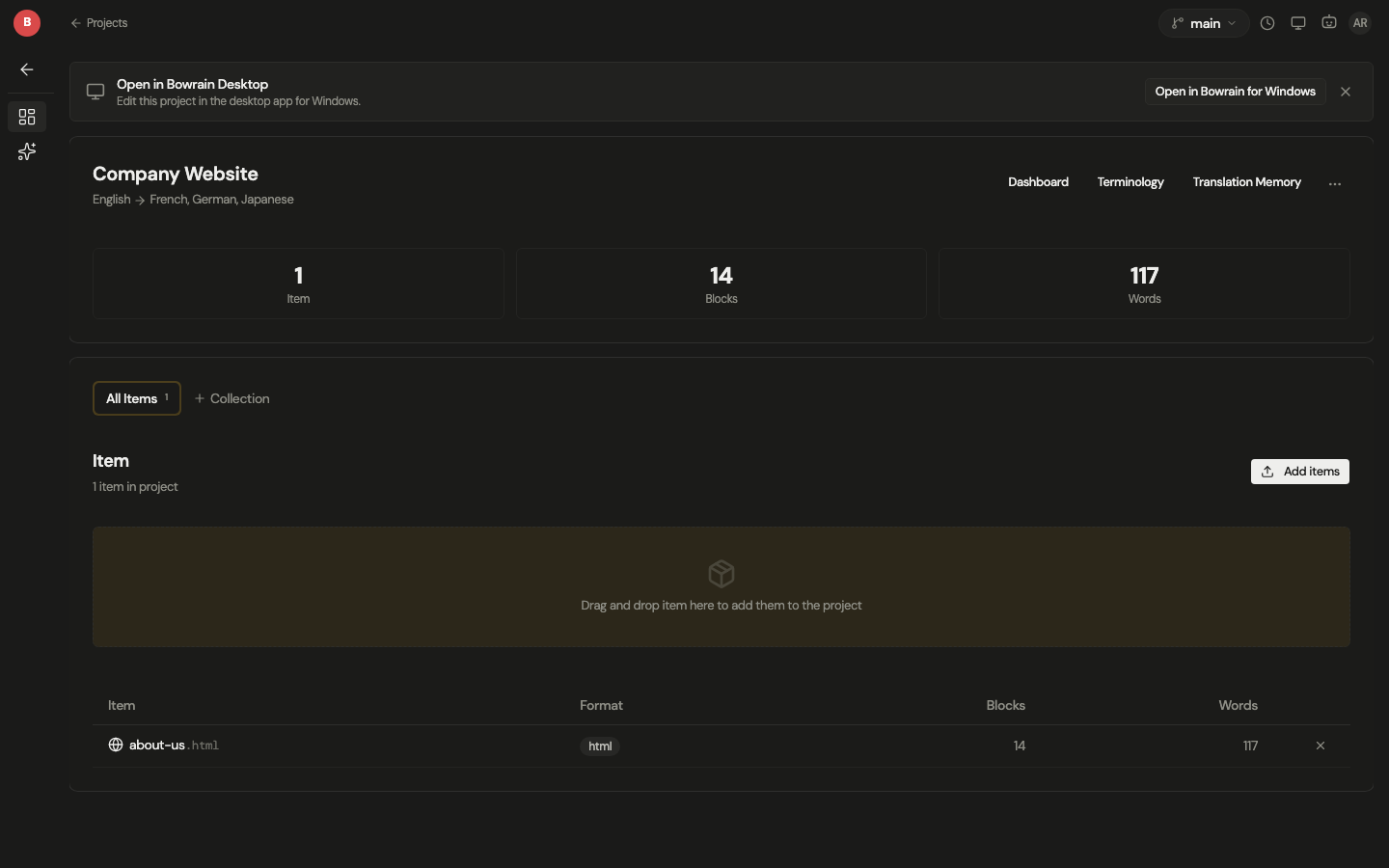
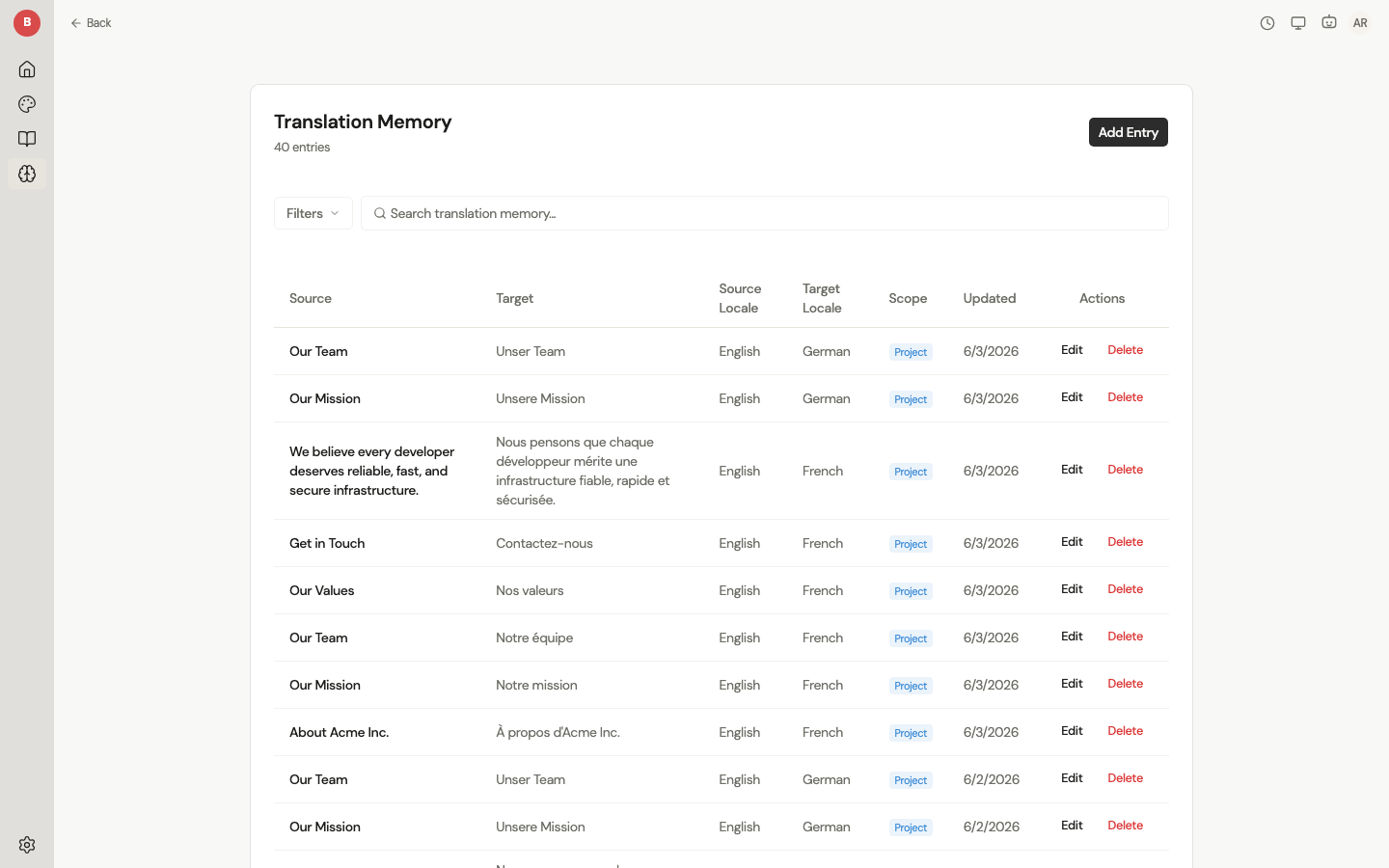
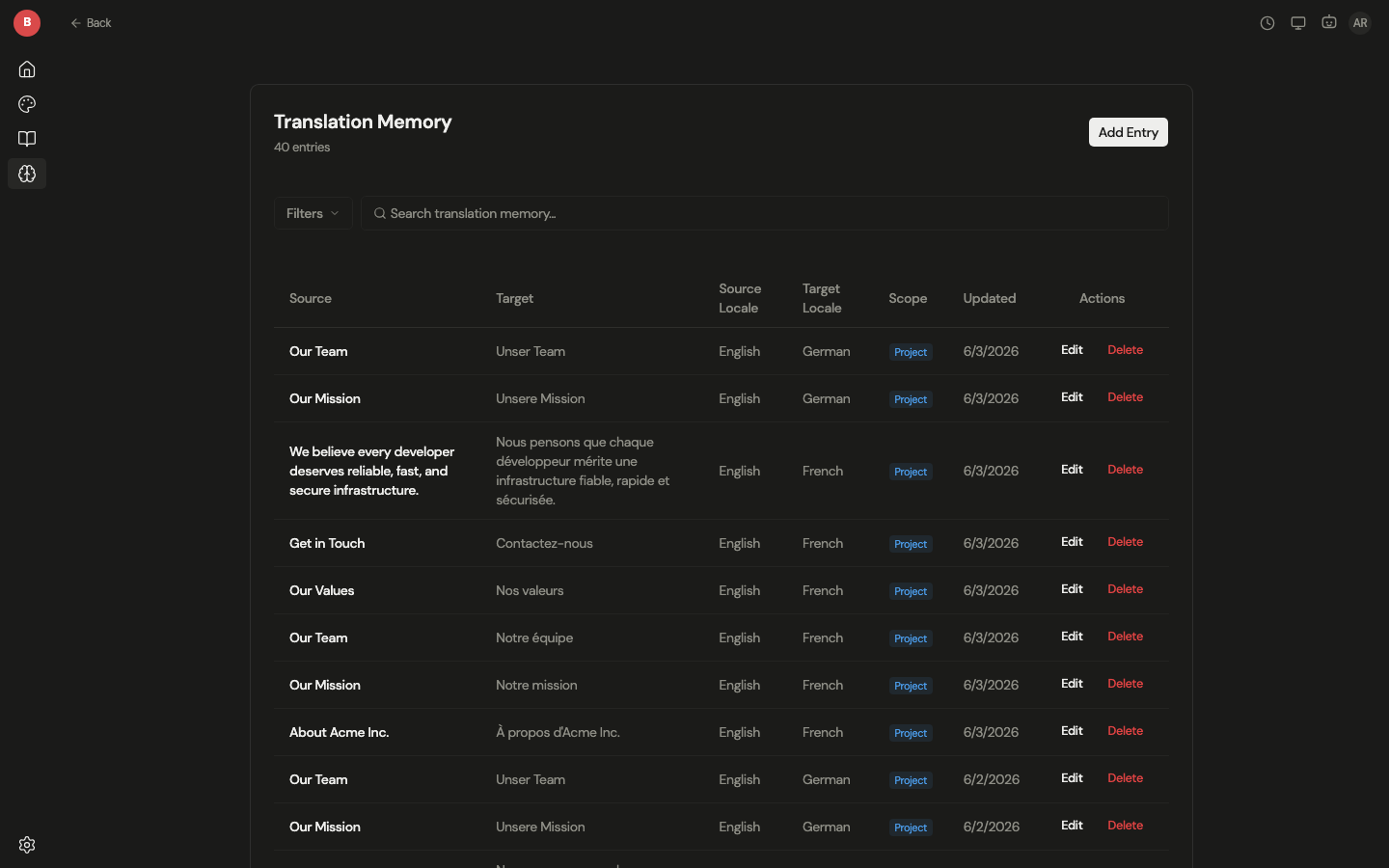
Content memory
The content memory browser gives full access to the workspace content memory: browse, search, add, edit, and delete entries, filtered by source or target locale.
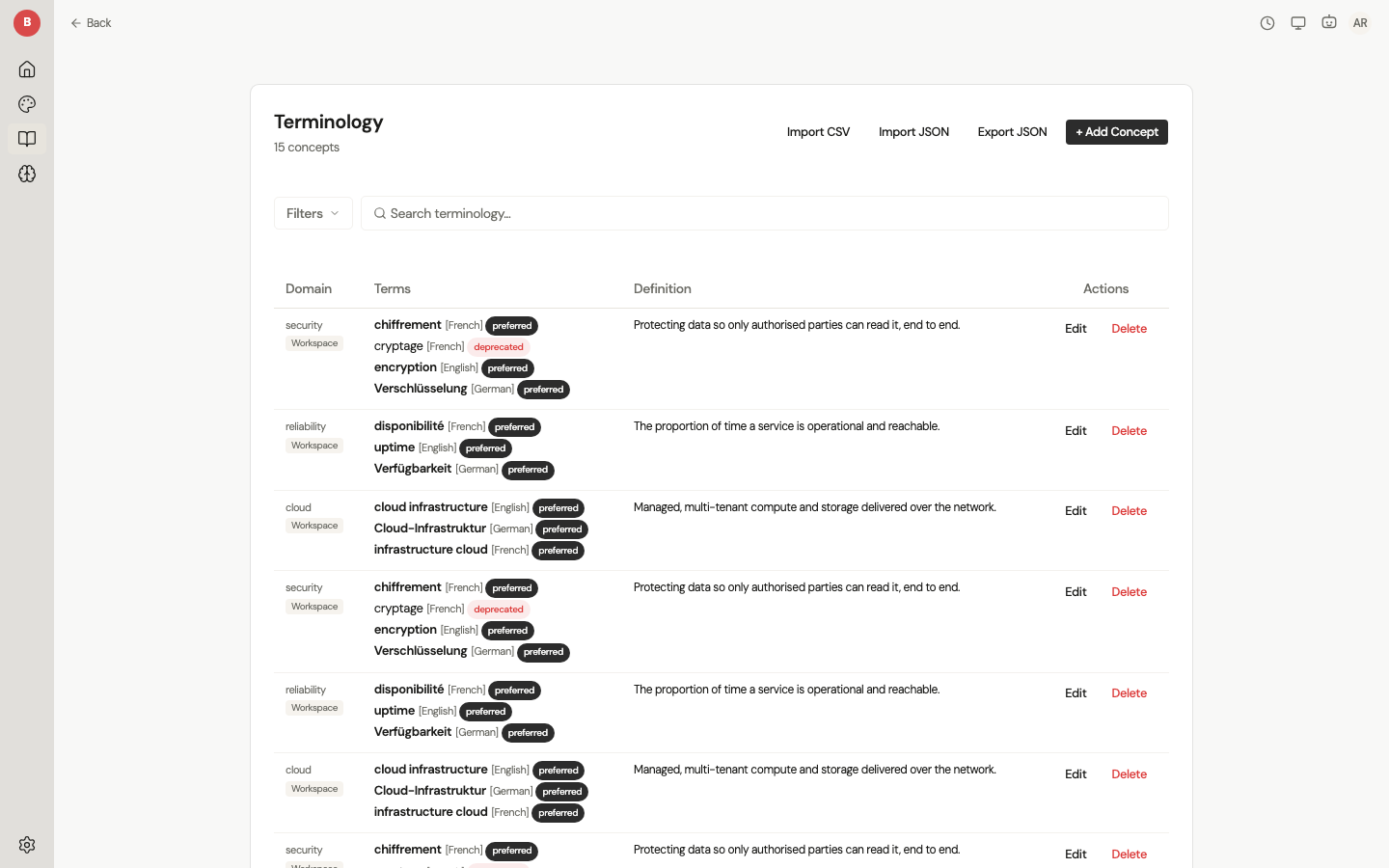
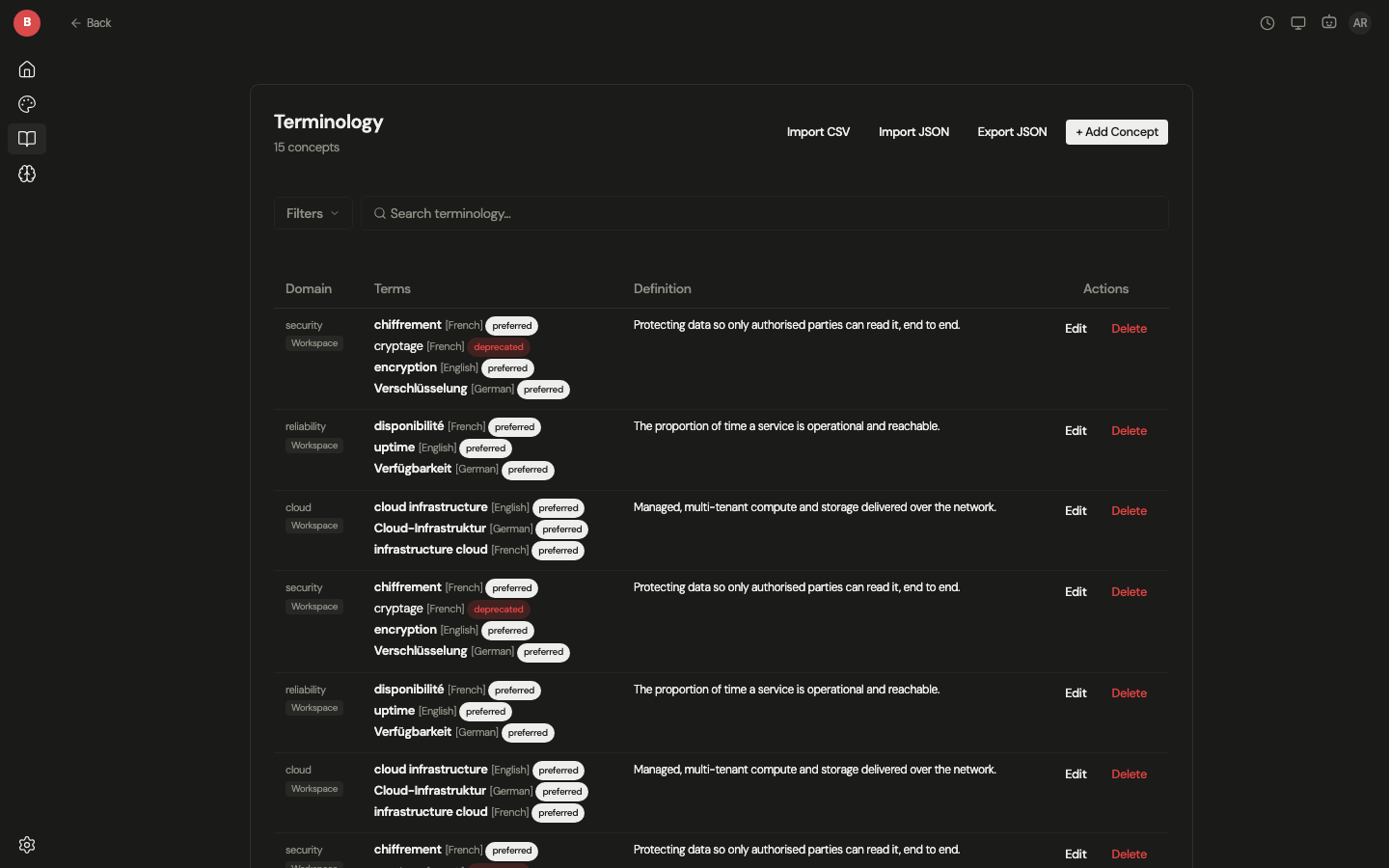
Terms explorer
The terms explorer is the Concepts view of the Context hub: browse, search, add, edit, and delete concepts with terms in every locale, a lifecycle status and a domain, and import from CSV or JSON.
Settings
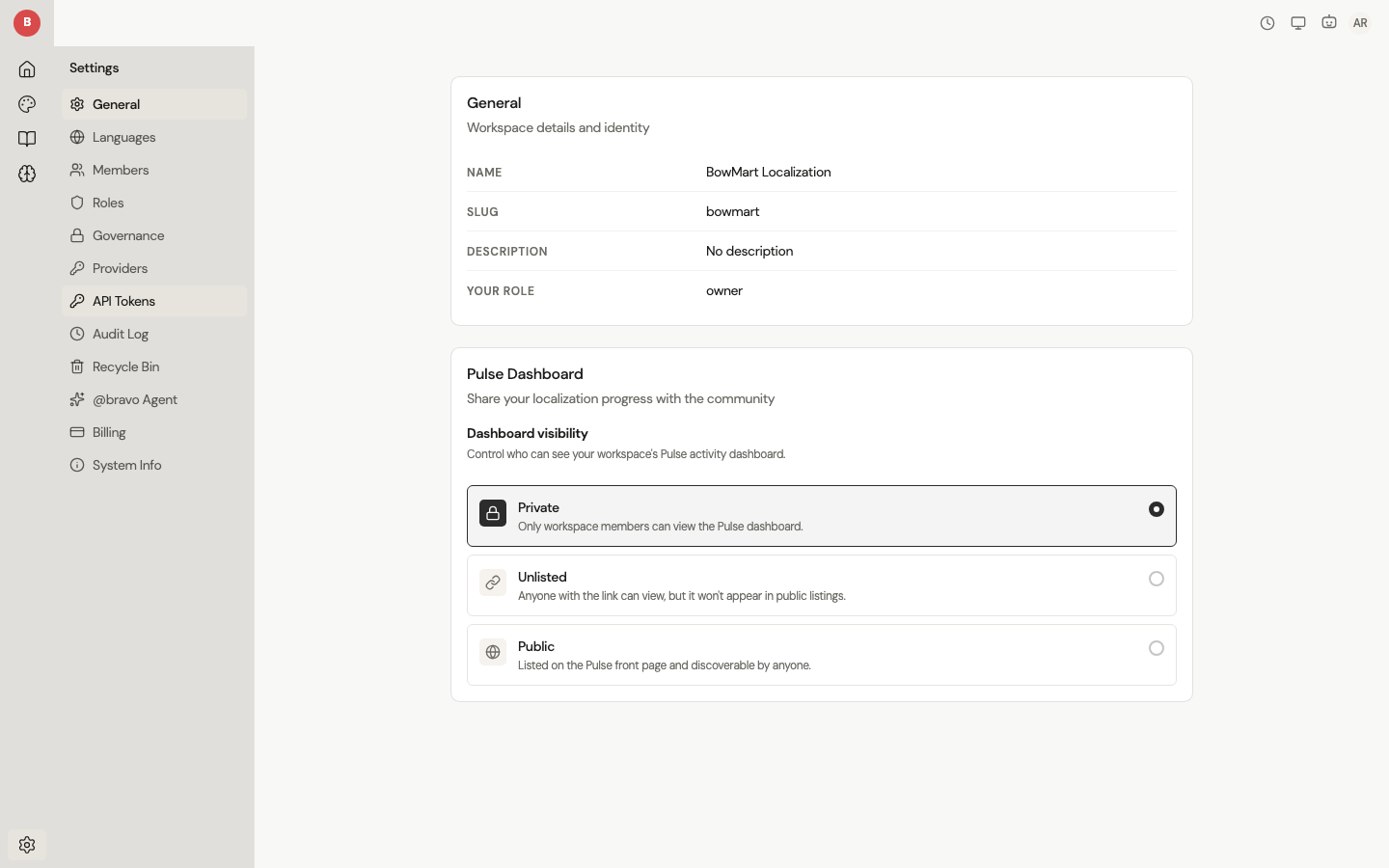
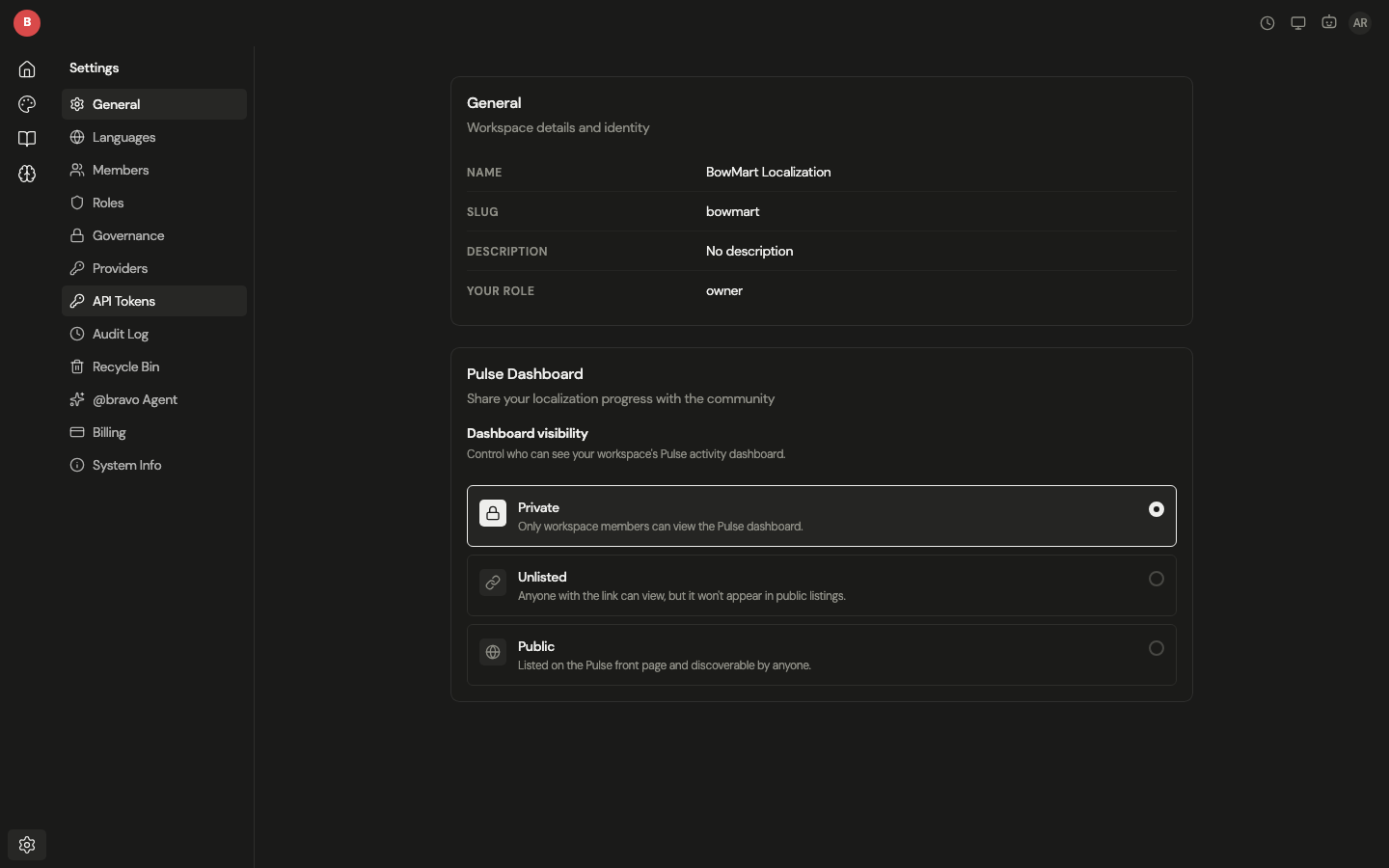
View workspace information including name, slug, description, and your role.
What the workspace holds
- The context graph: profiles per point, concepts with relations and per-market validity, voice profiles, change-sets with blast radius and pilots, and the decisions people made about them. See Context.
- Review: one session per project, a workspace inbox, ship states per locale, and review in place. See Review.
- An editor with Visual and Table views, inline tag support, and per-block memory and term context, for the source and for every target locale.
- Content memory with tiered matching and governed version reuse.
- AI drafting on the workspace's credits or on your own provider key, with any provider the engine's translate tool supports.
- Every format the engine reads and writes, listed in the format reference.
- Workspaces with role-based access, grants bound to a language or a point, and single sign-on through an identity provider.
Deployment
The platform is served by bowrain-server. Users authenticate through an
identity provider and can belong to multiple workspaces with different roles.
See Self-hosting for deployment instructions.
Browser and desktop clients
The browser and the desktop app share the same surfaces and connect to the same server and workspaces, so presence, sign-on, the hub, review, and the content memory are shared across them. The differences are about where you run, not what you can do: the desktop client adds offline editing and runs as a native app. See The desktop app for the full comparison.