Members and roles
A workspace groups the people who work on its projects. Workspace owners and admins invite members, assign roles and project role templates, bind grants to a point in the context space, issue API tokens, and set the governance controls for teams that need stricter separation.
Workspace roles
Every workspace member holds one workspace-level role, which sets what they can do across the whole workspace.
| Role | What it can do |
|---|---|
| Owner | Full control, including billing and deleting the workspace. Each workspace has one owner, its creator. |
| Admin | Manage members, settings, roles, tokens, and all projects. Cannot manage billing or delete the workspace. |
| Member | Create and edit projects, and push and pull content. |
| Viewer | Read-only access to projects and their content. |
These roles are also summarized on the Workspaces page. For finer control within a single project, use role templates.
Members are not metered. A plan caps custodian seats, markets and brands, so you can invite everyone who reads the content.
Inviting members
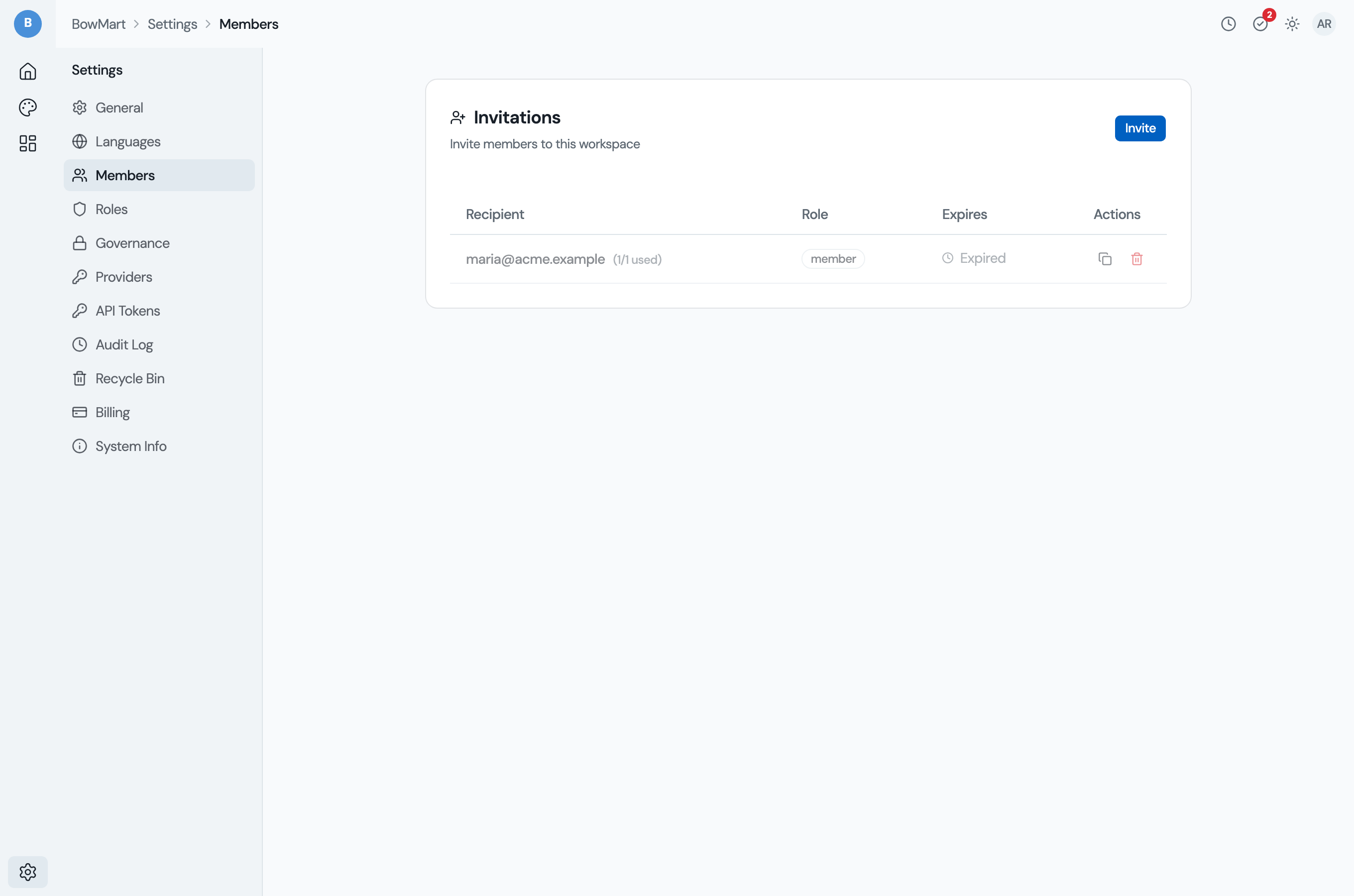
Go to Workspace Settings > Members and choose Invite. Enter the email address and pick the role to grant: Admin, Member, or Viewer. (Ownership is held by the workspace creator and is not granted through an invitation.)
An invitation is delivered by email and also carries a shareable join link. The recipient creates an account if they do not already have one, then joins the workspace with the role you chose. Each invitation has an expiry date, and a pending invitation can be revoked from the same page at any time before it is used.
Project role templates
A workspace role is broad. Within a project, role templates set what a member may do. A template is a named bundle of permissions.
Each new workspace is seeded with built-in templates:
| Template | Intended for |
|---|---|
| Project Admin | Full control over the project. |
| Developer | Manage files, run flows, manage connectors and automation, and contribute translations. |
| Translator | Translate content, scoped to specific languages. |
| Reviewer | Translate, review, and approve translations, scoped to specific languages or points. |
| Observer | Read-only access to project content. |
Manage templates from Workspace Settings > Roles. You can adjust the permissions of a built-in template, and create custom templates of your own; built-in templates cannot be deleted, but custom ones can.
A template is assembled from individual permissions grouped by area:
- Content: view content, edit source, translate, review.
translatewrites and rejects a translation. Approving one needsreview, so a template without it can contribute and send work back, and only a reviewer signs it off. - Knowledge: manage terms (
manage_terms), content memory (manage_memory), voice profiles (manage_voice), and assets. - Operations: run flows, manage files, manage streams, manage connectors, manage automation.
- Administration: manage members, manage project.
Project-level members
Adding someone to a project uses both of the above. In a project's members page, you assign a workspace member a role template and can limit it:
- By language. For the language-scoped templates such as Translator and
Reviewer, a set of languages they are limited to. A reviewer scoped to
frsees and acts on French work only; leaving the list empty grants all languages. - By point. The
review,manage_voiceandmanage_termspermissions are bound to a point in the context space: a region named by axis values such asbrand=acmeorbrand=acme,channel=support. A person limited this way reviews, or writes voice and terms, only for content at or under that point. The limit is stored on their membership.
One project can then have translators for different languages, a reviewer per market, a custodian per brand and a project admin, each with the access their job needs. A language is one more axis, so limiting by language and limiting by point work the same way.
Custodians and points
A custodian is a member who may write the voice profile and the terms for
a region of the context space. The grant makes the custodian: giving someone
manage_voice or manage_terms at a point makes them the custodian of that
point. Custodians own rules and escalations. Contributors work the review
queue, and contributors are not metered.
- Custodian seats are the one thing a plan meters about people. A grant that would exceed the plan's allowance is refused when it is made, with the count and the limit.
- The workspace owner keeps an implicit, unbillable custodianship at the root point, so an approval is always possible.
- A point nobody holds is marked on its profile card in the Context hub. Runs and builds continue at an uncovered point.
- When a plan carries no custodian seats, existing custodian grants are suspended. They return with the next plan that has seats.
See Billing and credits for the plan allowances.
API tokens
For programmatic access, such as CI pipelines, scripts, and integrations, a workspace owner or admin can issue API tokens from Workspace Settings > API tokens. API access is available on every plan; tokens are not metered.
When creating a token you set:
- Name: a label to identify where the token is used.
- Expiration: 7, 30, 60, or 90 days, a custom date, or no expiration.
- Scope: either full access, or restricted to a single action (read, translate, review, or manage), with translate and review optionally limited to specific BCP-47 languages.
The token value is shown once, at creation, so copy it then. Deleting a token
revokes access at once for anything using it. From the command line,
kapi auth token create, list and delete do the same (see
kapi auth).
Governance controls
For stricter access separation, owners and admins set the governance controls under Workspace Settings > Governance:
- Separation of duties: whether a person may approve their own work. Set
it to off, warn (record a warning but allow it), or block (refuse an approval
of content the approver wrote). It covers approving a translation block by
block, over a selection, and through Approve everything passing, where a
refused target is left pending and counted. A translation written by hand on
a laptop, with
kapi apply, in Kapi Desktop or through an agent working for that person, counts as the work of the person who first pushes it. The rule applies to an approval of it in that push or any later one, as in the web app. A draft a run produced has no human author, so the one person in a workspace can always approve it. - Teams: group members so they can be granted project roles in bulk.
- Deny rules: negative permissions that always override grants. A rule targets a user, a workspace role, or a team, and removes specific permissions from them.
- Workspace role overrides: tune the default permissions of a workspace role when the built-in defaults do not fit.
Next steps
- Workspaces: the workspace concept and settings.
- Review: the session a reviewer works in, and what a correction made there becomes.
- Billing and credits: plans, custodian seats, and AI credits.