Content memory
Content memory stores approved wording for reuse across workspace projects. Each entry pairs source and target text with the context in which it was approved. A run can reuse eligible entries before drafting new text.
The interface has changed since this was recorded. The workflow it demonstrates still applies, but some screens and labels differ from the current release. Concepts and Content memory show a list beside a detail pane.
Opening the content memory
Click Context in the main sidebar, then Content memory. The Content memory button in a project's source view opens the same page, because every project draws on the workspace's memory.
The list
The page is a list of pairs beside a detail pane. Each row shows an entry's source on one line, with the language of its target at the right.
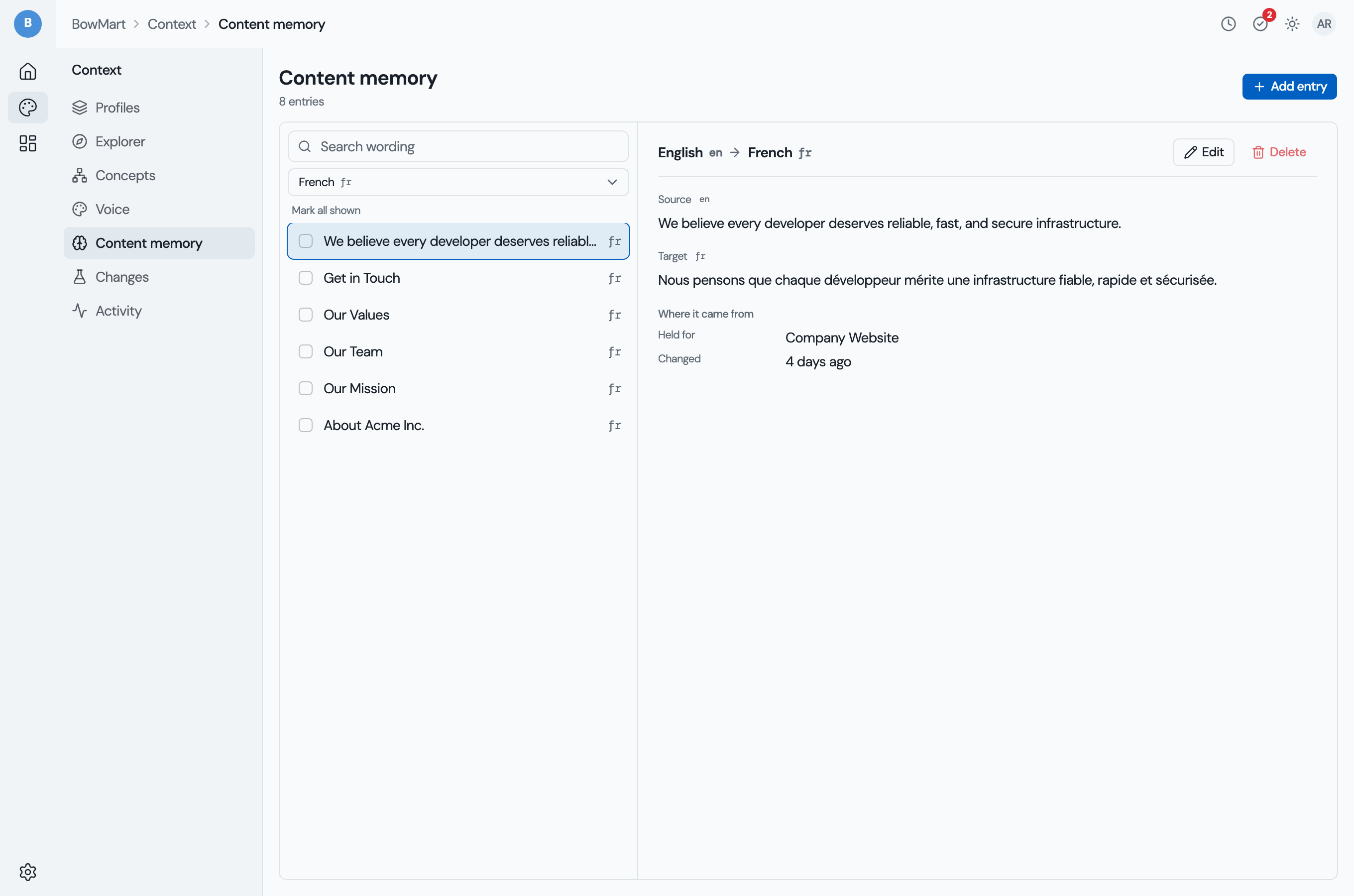
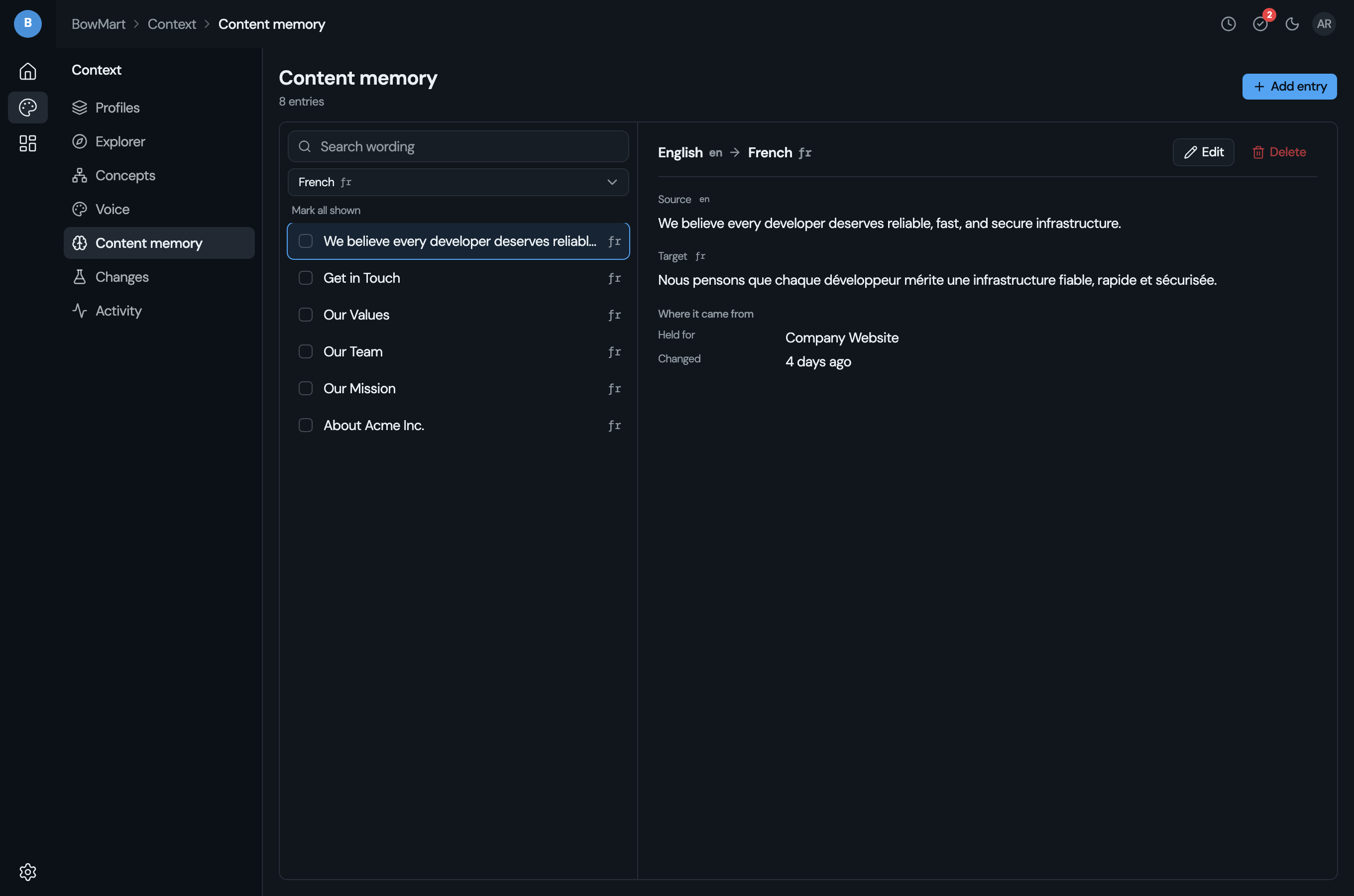
The server reads the memory into one target language at a time. When your projects translate into more than one, the picker under the search chooses the language; it starts on the one most of your projects translate into.
- Search matches the wording as you type.
- Show more entries, at the foot of the list, reads the next page.
The server returns each search a page at a time, so a memory of thousands of
entries searches as quickly as a short one. While the list has focus, the arrow
keys, j and k move the selection.
The detail pane
Select a pair to see its source and its target in full, and where it came from: the project it is held for, or the whole workspace; its stream, when it is not the main line; and when it last changed.
Adding entries
Click Add entry in the page header. Choose the source and target languages from the workspace's languages, enter the source and the approved wording, and click Add entry.
Editing entries
Click Edit in the detail pane's toolbar. The source and the target open for editing. Save stores both; Cancel or Escape leaves them as they were.
Deleting entries
Click Delete in the detail pane's toolbar, then Confirm.
To delete several entries at once, mark them: the box at the start of a row marks
its entry, x marks the selected row's, and Mark all shown marks every entry
in view. While any entry is marked, the detail pane holds Delete for all of
them, and Clear to unmark them. When some of a batch cannot be deleted, the
pane says how many, and why.
Content memory in editing and review
The content memory is also used in the editor and in every run:
- Context panel: the editor shows per-block matches with scores and match types, with one-click apply.
- Bulk recycle: the editor's file-wide operations pre-fill targets from the content memory across the whole file; exact and high-confidence fuzzy matches land as drafts for review.
- In a run: every run recycles from memory before it drafts, so approved wording is reused before any credit is spent.
Match scores
Each match receives a score from 0 to 100% representing how closely the source text matches the stored entry. Matches are colour-coded:
- Green (100%): exact match
- Yellow (70–99%): fuzzy match
- Lower scores appear with reduced emphasis
Bowrain's matching accounts for inline formatting differences, so a source segment and a stored entry can match even if their tag structure differs slightly.
Governed version reuse
Successive answers for one block are linked as a version chain. Each carries a fingerprint of the context it was approved under: the point, the voice profile and the terms in force.
When a block's source changes:
- the prior answer is offered to the model as a reference only, and only under the fingerprint it was approved under;
- the reuse decision looks at how much the words changed (none, cosmetic or substantive), beside the similarity score;
- you can ask a translation to reuse the prior version or to start clean.
The chain and the fingerprint travel with the entry, so a memory exported from one workspace keeps its provenance in the next.
For how the underlying engine matches across projects, see the framework's content memory reference.